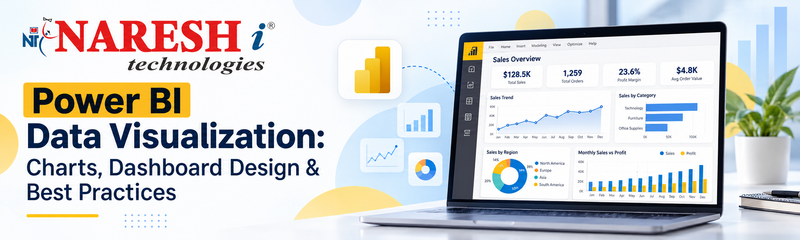
After learning Power Query, Data Modelling and DAX in Power BI, the next important step is data visualization.
A good dashboard should not only look attractive. It should help users quickly understand what is happening in the data.
For beginners learning Power BI, understanding which chart to use, how to structure a dashboard and how to avoid visual clutter is essential.
A practical Power BI learning flow is:
Power Query → Data Modelling → DAX → Data Visualization → Dashboard Development
What Is Data Visualization in Power BI?
Data visualization in Power BI is the process of presenting data using charts, graphs, cards, tables and interactive visuals so users can understand patterns, trends and business insights more easily.
Instead of reading thousands of rows in a spreadsheet, users can view a dashboard and quickly answer questions such as:
- How much revenue was generated?
- Which product performed best?
- Which region has the highest sales?
- Are monthly sales increasing or decreasing?
- Which category needs attention?
This is why visualization is one of the most important parts of business intelligence.
Why Is Data Visualization Important?
Good data visualization helps users understand information faster.
It can improve:
- Decision-making
- Trend identification
- Performance tracking
- Business reporting
- KPI monitoring
- Comparison between categories
- Communication with management
The goal is not to use as many charts as possible.
The goal is to communicate the right insight with the right visual.
Common Power BI Charts for Beginners
Power BI provides many visual options. Beginners should first understand the most useful ones.
Bar Chart
Bar charts are useful for comparing categories.
Examples:
- Sales by product
- Revenue by city
- Employees by department
Use bar charts when you want to compare multiple items clearly.
Column Chart
Column charts are also useful for comparison, especially when the number of categories is limited.
Example:
Sales by Month
They work well when users need to compare values across time or categories.
Line Chart
Line charts are ideal for showing trends over time.
Examples:
- Monthly sales growth
- Website traffic
- Revenue trend
- Customer growth
If your question is “How is performance changing over time?”, a line chart is usually a good choice.
Pie and Donut Charts
Pie and donut charts can show how a total is divided into categories.
Example:
- Sales share by category
- Revenue contribution by region
Use them carefully.
If there are too many categories, bar charts are often easier to understand.
KPI Cards
Cards display important numbers prominently.
Examples:
- Total Revenue
- Total Orders
- Total Customers
- Total Profit
- Profit Margin
KPI cards are commonly placed at the top of dashboards.
Tables and Matrix Visuals
Tables are useful when users need exact values.
Matrix visuals can organize information using rows and columns.
They are useful for reports such as:
- Sales by region and product
- Department-wise performance
- Monthly revenue comparison
How to Choose the Right Power BI Chart
| Business Question | Recommended Visual |
|---|---|
| Compare categories | Bar or Column Chart |
| Show trends | Line Chart |
| Display one KPI | Card |
| Show percentage contribution | Donut Chart |
| Show detailed values | Table or Matrix |
| Compare actual vs target | KPI or Gauge |
| Show location-based data | Map |
Basic Power BI Dashboard Structure
A beginner dashboard can follow this layout.
Top Section
Place important KPIs such as:
- Total Sales
- Total Profit
- Total Orders
- Total Customers
Middle Section
Display key analysis such as:
- Sales trend
- Category performance
- Regional comparison
Bottom Section
Add detailed information such as:
- Product performance
- Customer analysis
- Tables
- Additional breakdowns
Use Slicers for Interactive Analysis
Slicers allow users to filter dashboards interactively.
Common slicers include:
- Year
- Month
- Region
- Product
- Category
- Customer
For example, if the user selects Hyderabad, the dashboard can automatically show only Hyderabad-related information.
Common Power BI Visualization Mistakes
Beginners should avoid:
- Using too many charts
- Adding unnecessary colors
- Using 3D visuals without a clear purpose
- Selecting the wrong chart type
- Creating very small visuals
- Adding too many slicers
- Using unclear titles
- Showing duplicate information
- Ignoring mobile or smaller-screen readability
Power BI Training in KPHB
Learners looking for Power BI training in KPHB should focus on more than learning individual tools.
A complete learning path should include:
- Power Query
- Data Cleaning
- Data Modelling
- DAX
- Data Visualization
- Dashboard Design
- Power BI Service
- Practical Projects
At NareshIT KPHB, learners can build Power BI and data analytics skills through structured learning and practical exercises.
Frequently Asked Questions
What is data visualization in Power BI?
Data visualization is the process of representing data using charts, graphs, cards and other visuals so users can understand insights more easily.
Which chart is best for comparing categories?
Bar charts and column charts are commonly used for category comparisons.
Which chart is best for showing trends?
Line charts are usually best for showing changes over time.
What is the difference between a report and dashboard in Power BI?
A report can contain multiple pages and detailed visuals, while a dashboard generally provides a high-level summary of important metrics.
Are slicers important in Power BI?
Yes. Slicers allow users to interactively filter report data by dimensions such as date, region, category or product.
Final Thoughts
Power BI data visualization is about making data easier to understand.
Beginners should focus on:
Choosing the Right Chart → Building Clear KPIs → Organizing the Layout → Adding Useful Filters → Keeping the Dashboard Simple
Once these fundamentals are clear, creating professional Power BI dashboards becomes much easier.