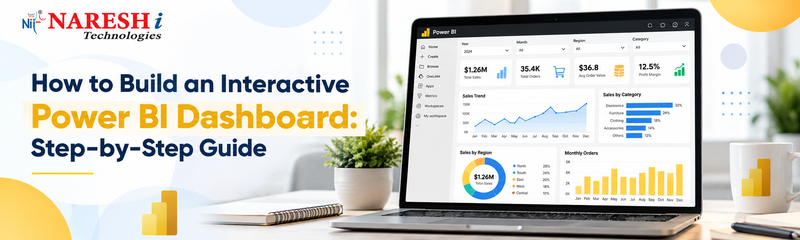
After learning Power Query, Data Modelling, DAX and Data Visualization, the next step is to bring everything together by building an interactive Power BI dashboard.
A good dashboard should help users understand key business information quickly, interact with the data and find useful insights without reading large spreadsheets.
For learners following a structured Power BI path, this is where individual concepts start becoming a complete business intelligence project.
What Is an Interactive Power BI Dashboard?
An interactive Power BI dashboard is a visual report that allows users to explore data using filters, slicers, drill-downs and other interactive elements.
Instead of showing only fixed charts, an interactive dashboard lets users ask questions such as:
- What were the sales in Hyderabad?
- Which product category performed best?
- How did revenue change month by month?
- Which region generated the highest profit?
- What happens if we filter only one year or quarter?
This makes the dashboard useful for real business analysis.
Start With a Clear Business Objective
Before adding visuals, decide what the dashboard should answer.
For example, a sales dashboard may focus on:
- Total Sales
- Total Profit
- Total Orders
- Total Customers
- Monthly Growth
- Top Products
- Regional Performance
A dashboard should solve a business problem, not just display data.
Prepare and Clean the Data
Use Power Query before building the dashboard.
Typical tasks include:
- Removing duplicate records
- Handling missing values
- Changing data types
- Renaming columns
- Splitting or merging columns
- Combining multiple data sources
Clean data helps reduce errors later in the report.
Build a Proper Data Model
After cleaning the data, create relationships between tables.
A typical Power BI model may include:
- Sales table
- Customer table
- Product table
- Date table
- Region table
Where possible, use a star schema with one central fact table connected to dimension tables.
A strong data model makes calculations and filtering easier.
Create Important DAX Measures
Create measures for the main KPIs before designing the dashboard.
Examples:
Total Sales = SUM(Sales[Sales Amount])Total Profit = SUM(Sales[Profit])Total Orders = COUNTROWS(Sales)Total Customers = DISTINCTCOUNT(Sales[Customer ID])Profit Margin = DIVIDE([Total Profit], [Total Sales])These measures can later be displayed using cards and charts.
Add KPI Cards
Place important business metrics at the top of the dashboard.
Common KPI cards include:
- Total Sales
- Total Profit
- Total Orders
- Total Customers
- Profit Margin
Users should be able to understand overall performance within a few seconds.
Add the Right Charts
Choose charts based on the type of information you want to communicate.
Line Chart
Use it for:
Monthly Sales Trend
Bar Chart
Use it for:
Sales by Product Category
Column Chart
Use it for:
Sales by Region
Donut Chart
Use it for:
Sales Contribution by Category
Table
Use it for:
Top Products or Customers
The visual should match the business question.
Add Slicers
Slicers make Power BI dashboards interactive.
Useful slicers include:
- Year
- Month
- Region
- Product
- Category
- Customer
For example, if a user selects 2026, all connected visuals can update automatically to show only 2026 data.
This is one of the easiest ways to improve dashboard usability.
Use Drill-Down for Detailed Analysis
Drill-down allows users to explore information at different levels.
For example:
Year → Quarter → Month → Day
A manager may first view yearly sales and then drill down into a particular quarter or month.
This helps users explore details without overcrowding the dashboard
Add Tooltips
Tooltips display additional information when users move the cursor over a visual.
For example, when hovering over a sales chart, a tooltip may show:
- Revenue
- Profit
- Number of Orders
- Growth Percentage
Tooltips provide extra information without adding more charts to the page.
Keep the Dashboard Layout Simple
A professional dashboard should have a clear visual hierarchy.
A simple layout can be:
Top Section
KPI Cards
Middle Section
Sales Trend and Category Performance
Bottom Section
Regional Analysis, Product Table and Detailed Insights
Keep enough spacing between visuals.
Avoid filling every available area.
Power BI Training in KPHB
Learners searching for Power BI training in KPHB should practise building complete dashboards rather than learning each Power BI feature separately.
A strong Power BI learning path includes:
- Power Query
- Data Cleaning
- Data Modelling
- DAX
- Data Visualization
- Interactive Dashboard Development
- Power BI Service
- Real-world Projects
At NareshIT KPHB, learners can strengthen their Power BI and data analytics skills through structured learning and practical project-based exercises.
Frequently Asked Questions
What makes a Power BI dashboard interactive?
Features such as slicers, filters, drill-downs, tooltips and connected visuals make Power BI dashboards interactive.
What should beginners include in a Power BI dashboard?
Beginners can start with KPI cards, line charts, bar charts, tables and a few useful slicers.
Do I need DAX to build a dashboard?
Basic dashboards can be created without advanced DAX, but DAX is useful for creating meaningful KPIs and business calculations.
What is the difference between a dashboard and a report?
A Power BI report can contain multiple pages and detailed analysis, while a dashboard generally provides a summarized view of important information.
Should I learn Power Query before dashboard development?
Yes. Cleaning and preparing data properly makes dashboard development easier and more reliable.